THE EDIT STUDIOS
THE WIX TEMPLATE
SETUP GUIDE.
You bought the website. Excellent.
Now we need to get her into your Wix account, remove all evidence of me, add you, and send her out into the world.
This is where I explain how.
Screenshots included. I’m not a monster.
THE OVERVIEW
Start here.
Here is what we're going to do:
01. Create your Wix account.
02. Get familiar with your Wix account + Sites.
03. Send me the email connected to your Wix account.
04. I'll transfer your template to you.
05. Accept the transfer from Wix within 3 days.
06. Find your new website in Sites.
07. Open it in the Wix Editor.
08. Replace the demo content with yours.
09. Change your colours + fonts, if you want to.
10. Check your pages + menu.
11. Check every button, link + form.
12. Check the mobile version.
13. Add your SEO information.
14. Connect your domain.
15. Check the entire bloody thing.
16. Publish.
Nothing particularly dramatic.
It's mostly clicking things.

You can absolutely do this.Coffee may be required.
01 / FIRST, WIX.
Already have a Wix account? Excellent. You can skip this bit.
If you don't, start here:
STEP 1:
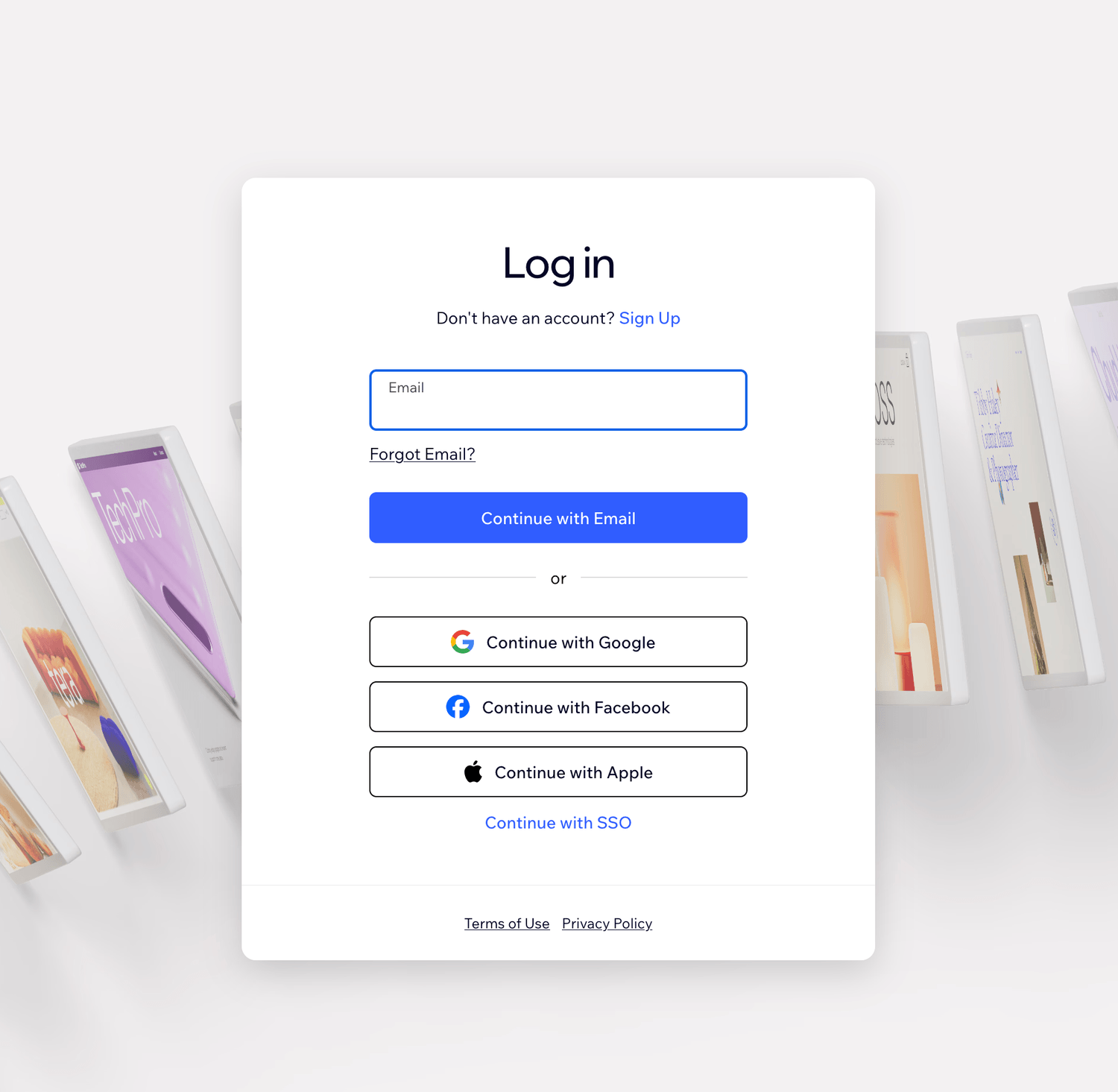
Click Get Started.
Wix will ask you to create an account.
Use the email address you want connected to your new website.
Make a note of which email you use. I'll need it later so I know where to send your template.
Wix is free to sign up for, so you do not need to choose or pay for a Wix plan at this point.
Lorem ipsum dolor sit amet, consectetur adipisicing elit. Autem dolore, alias, numquam enim ab voluptate id quam harum ducimus cupiditate similique quisquam et deserunt, recusandae.
STEP 2:
Once you've created your account, Wix may immediately start asking questions about the website you want to create under the "Let´s set up your business" step.
Wix will ask you questions to figure out what type of website you are trying to creating. Because you are going to use a template, you can skip all these questions by clicking "Skip". When you are done with this,
you´ll be taken to the Wix dashboard where you can find the website you have just created. You´ll not use this website, because you have the template.
STEP 3:
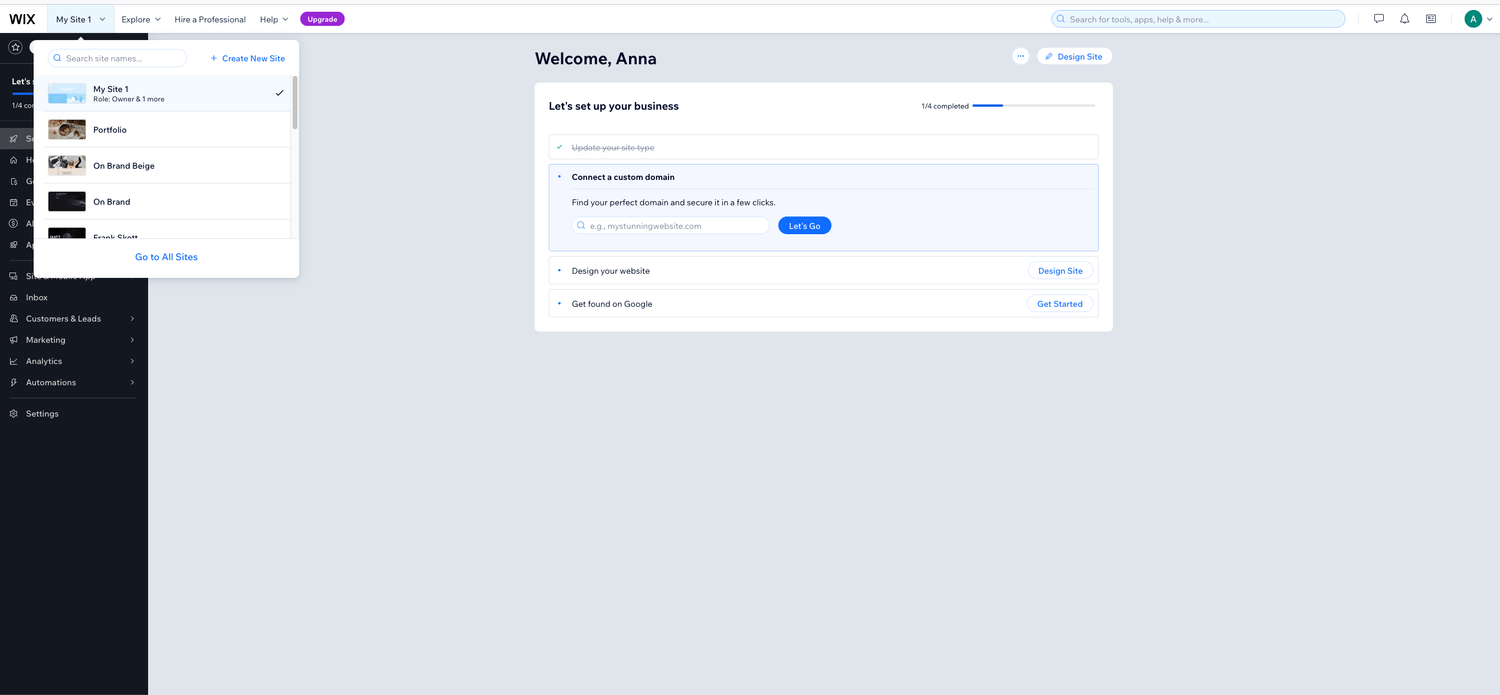
Access my site section on Wix.
In the top left corner you´ll find a button saying "My site 1" or if you gave your site a name, you´ll find the name there. Click on that button, and then go to "All sites".
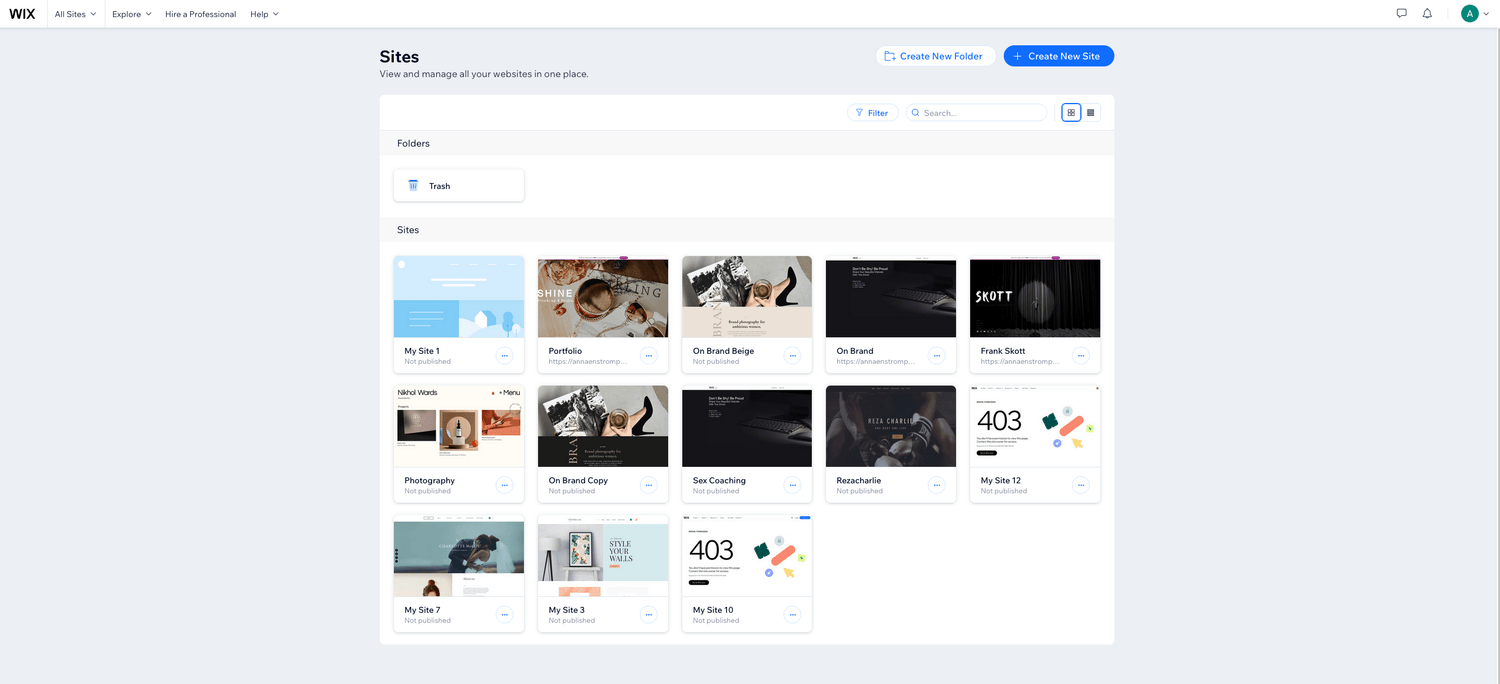
Now you are at the "My sites section" where you will find all the websites you´ll create on Wix. This is also the page where you´ll find your new template as soon as you have accepted the transfer. Bookmark this page, because you´ll use it a lot.
Lorem ipsum dolor sit amet, consectetur adipisicing elit. Autem dolore, alias, numquam enim ab voluptate id quam harum ducimus cupiditate similique quisquam et deserunt, recusandae.
AND THAT'S YOUR WIX ACCOUNT SORTED.
You don't need to build anything.
You don't need to buy anything from Wix yet.
You don't need to choose another template.
You just need the account.
Next, I need to know where to send the good stuff.
02 / SEND ME YOUR WIX EMAIL.
Now that your Wix account is ready, I need to know where to send your new website.
Send me the email address connected to your Wix account, together with the email address you used when you purchased your template.
I need both so I can match your purchase and make sure I transfer the website to the right Wix account.
If you used the same email address for both, even better.
You can check which email is connected to your Wix account by clicking your profile icon in the top right corner of Wix and opening your account settings.
Before you send it, double-check the address. This is the Wix account your website will be transferred to.
Once I’ve matched your purchase details, I’ll transfer your new website to you within 24 hours.
You don’t need to do anything else in Wix while you wait.
Keep an eye on your inbox. Wix is about to send you something important.
03 / ACCEPT THE SITE TRANSFER.
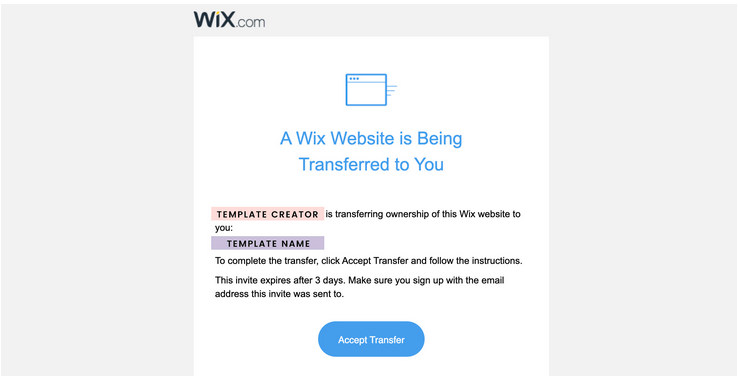
Within 24 hours, you’ll receive an email from Wix telling you that a Wix website is being transferred to you.
It will look something like the email below.
Click the blue Accept Transfer button in the email.
Wix will ask you to sign in. Make sure you sign in using the same Wix account and email address you gave me in Step 02.
Then follow the instructions on screen to accept the website.
You have 3 days to accept the transfer.
If you don’t accept it within 3 days, the invitation expires.
Once you've accepted it, the website will be added to your Wix account.
And that’s it.
She’s officially yours.
Lorem ipsum dolor sit amet, consectetur adipisicing elit. Autem dolore, alias, numquam enim ab voluptate id quam harum ducimus cupiditate similique quisquam et deserunt, recusandae.
04 / MAKE IT YOURS.
Now that the website is safely inside your Wix account, we can get to the good bit.
Open your new website from Sites and click Design Site to open the Wix Editor.
The Wix Editor is where you'll change the template from my demo website into your website.
You can replace the words, photographs, colours and fonts, change your pages and menu, update your buttons and links, and generally remove all evidence of the imaginary business currently living there.
Before you start, here's where everything is.
EDIT YOUR PAGES + MENU.
On the left-hand side of the Wix Editor, open Pages & Menu.
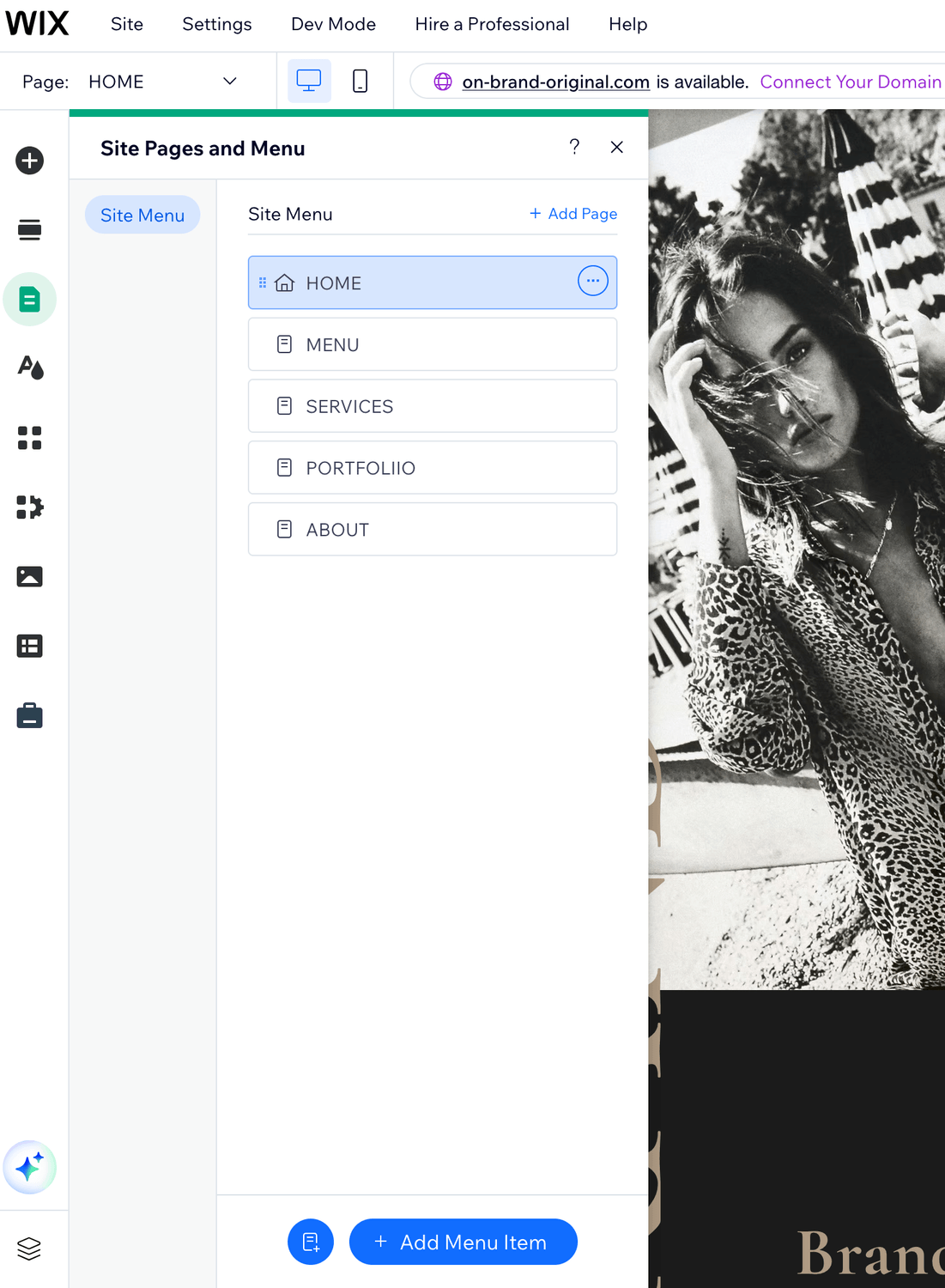
You'll see all the pages included with your template.
Click the page you want to work on and Wix will open that page in the Editor.
From here you can also:
rename a page
change the order of pages in your menu
hide a page from the menu
manage the page's URL
add a new page if you need one
TO EDIT A PAGE
1. Open Pages & Menu on the left.
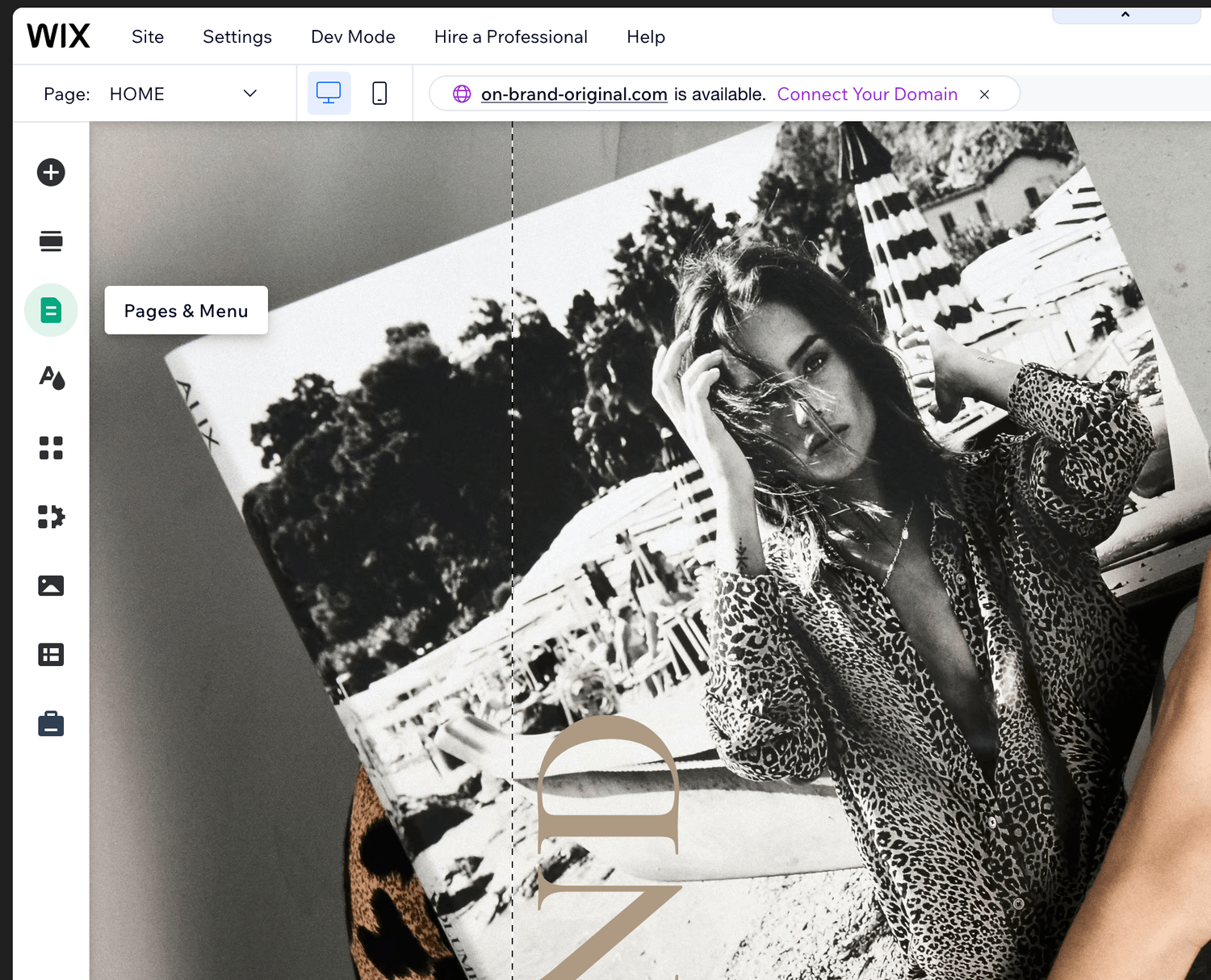
2. Click the page you want to edit.
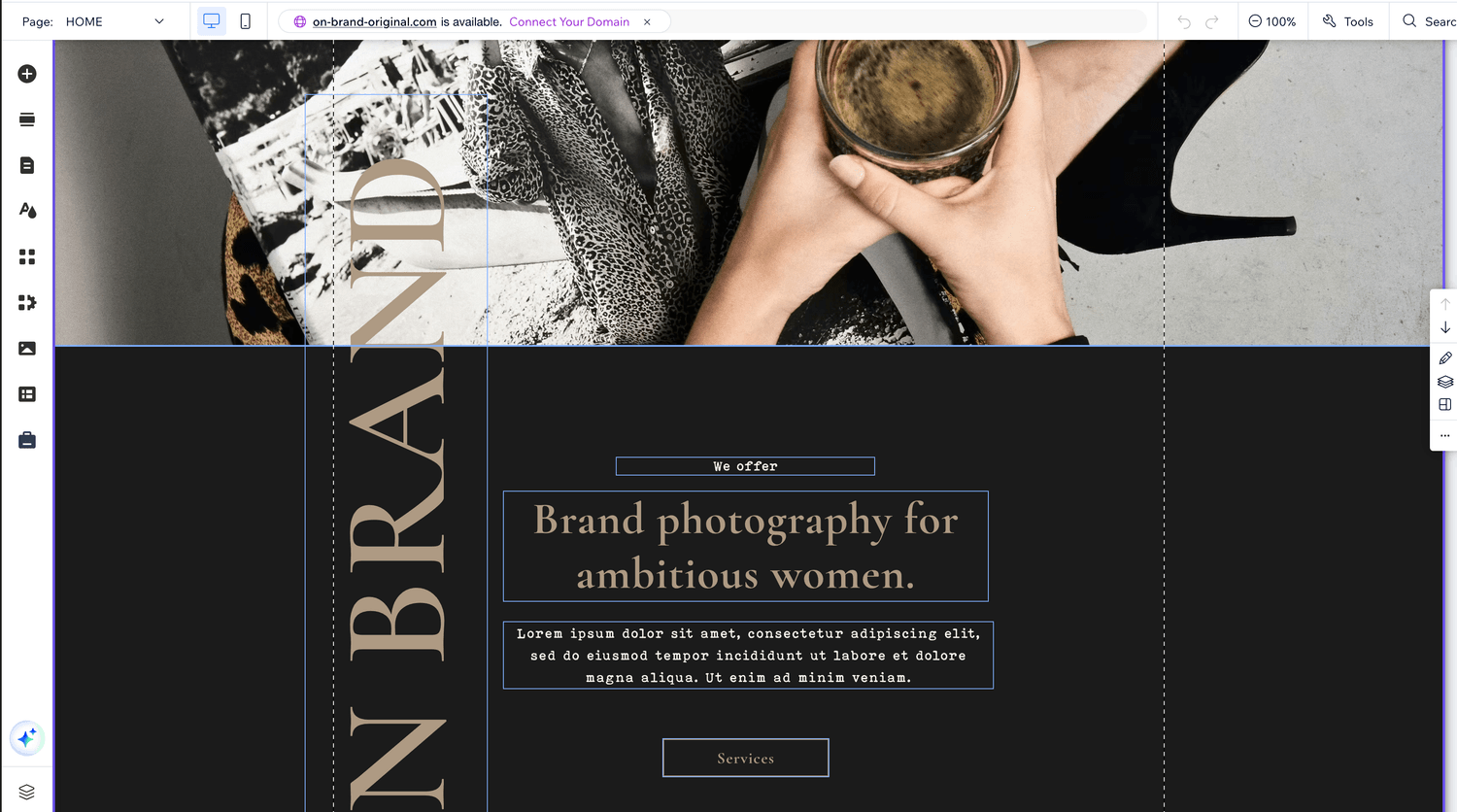
3. The page will open in the Editor.
4. Click directly on the text, image, button or other element you want to change.
Your template already has its page structure in place, so you don't need to rebuild it.
Start by replacing what's there with your own content.
CHANGE THE WORDS.
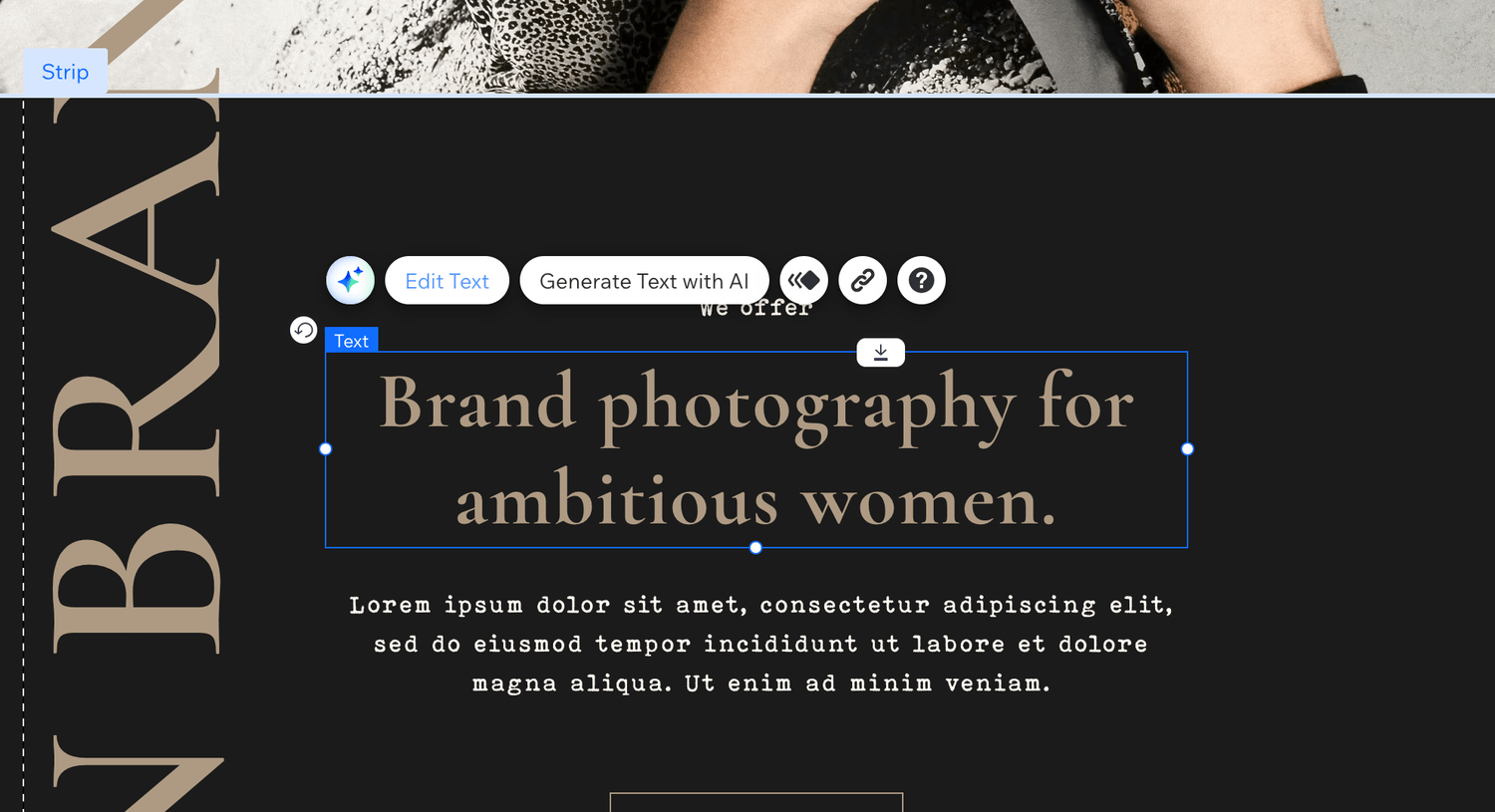
To change any text on your website:
1. Click directly on the text you want to change.
2. Click Edit Text.
3. Highlight the demo text and replace it with your own.
You'll also see options for things like the font, size, alignment, spacing and text style.
You can change these if you need to, but remember that the typography and spacing are already part of the template design.
Replace the words first.
Redesign the entire internet later.
Go through each page and replace the demo content with your own business information, including your headings, paragraphs, services, prices, contact details and anything else specific to your business.
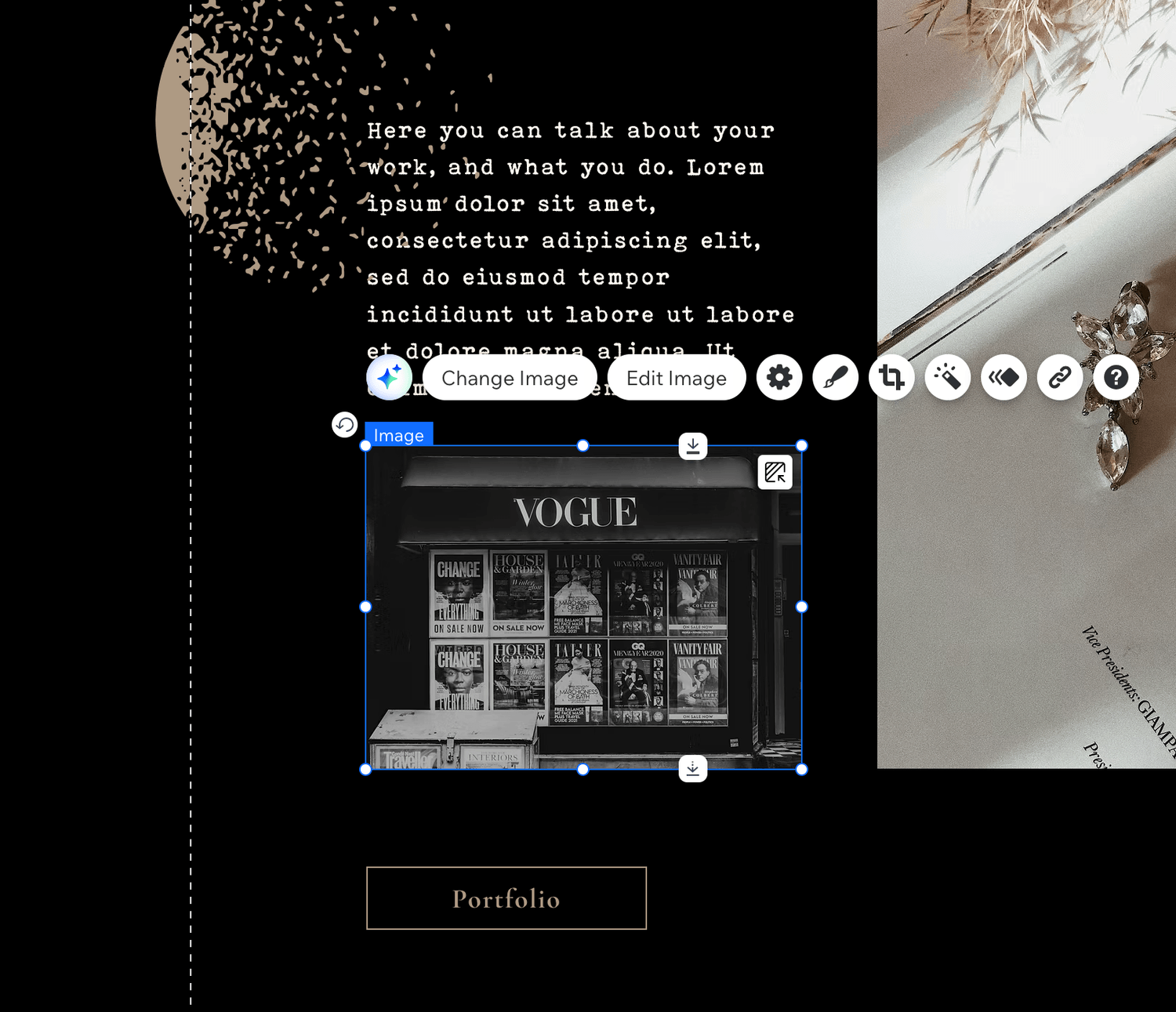
CHANGE THE IMAGES.
To replace an image:
1. Click the image you want to replace.
2. Click Change Image.
3. Upload your own image to Wix, or select one you've already uploaded.
4. Choose your image and add it to the page.
Once you've replaced it, check how it sits inside the existing image frame.
You may need to adjust the crop or position so the important part of the photograph is actually visible.
Repeat this for all demo photographs you want to replace, including background images and galleries.
OPTION 1 / CHANGE YOUR SITE COLOURS.
Use this when you want to change the overall colour palette of the website.
On the left-hand side of the Wix Editor, click Site Design and open your site's colour/theme settings.
You'll see the colours currently being used throughout your website.
1. Click Site Design.
2. Open the site's colour/theme settings.
3. Select the theme colour you want to replace.
4. Choose your new colour, or enter your brand's HEX colour code if you have one.
5. Repeat for any other theme colours you want to change.
Because these are theme colours, the same colour may be used in several places throughout the website. Changing it here can therefore change every element using that particular theme colour.
Very useful when you're changing the template to your own brand palette.
Less useful when you only wanted that one box to be beige.
So there is another way.
OPTION 2 / CHANGE THE COLOUR OF ONE ELEMENT ONLY.
You can also change the colour of an individual element without changing the rest of the website.
For example, perhaps you want to change the background colour of one section, one button or one text box, while leaving everything else exactly as it is.
In that case, don't change the theme colour.
Instead:
1. Click the individual element you want to change.
For a section background, click the section itself.
2. Open the Design / Change Section Background option that appears for that element.
The exact wording can vary slightly depending on what you've selected. A button, section, strip or other element will have its own design controls.
3. Click the colour/background option.
4. Choose your new colour, or enter your HEX code.
5. Click away from the element and check the result.
That changes that element only. The other elements using your site's original theme colour stay exactly where they are, minding their own business.
WHICH ONE SHOULD I USE?
Want to change the template to your overall brand colours?
Change the SITE THEME colours.
Want one particular section, button or background to be a different colour?
Change the INDIVIDUAL ELEMENT.
And after changing either, have a quick look through the website on both desktop and mobile to make sure everything still works together.
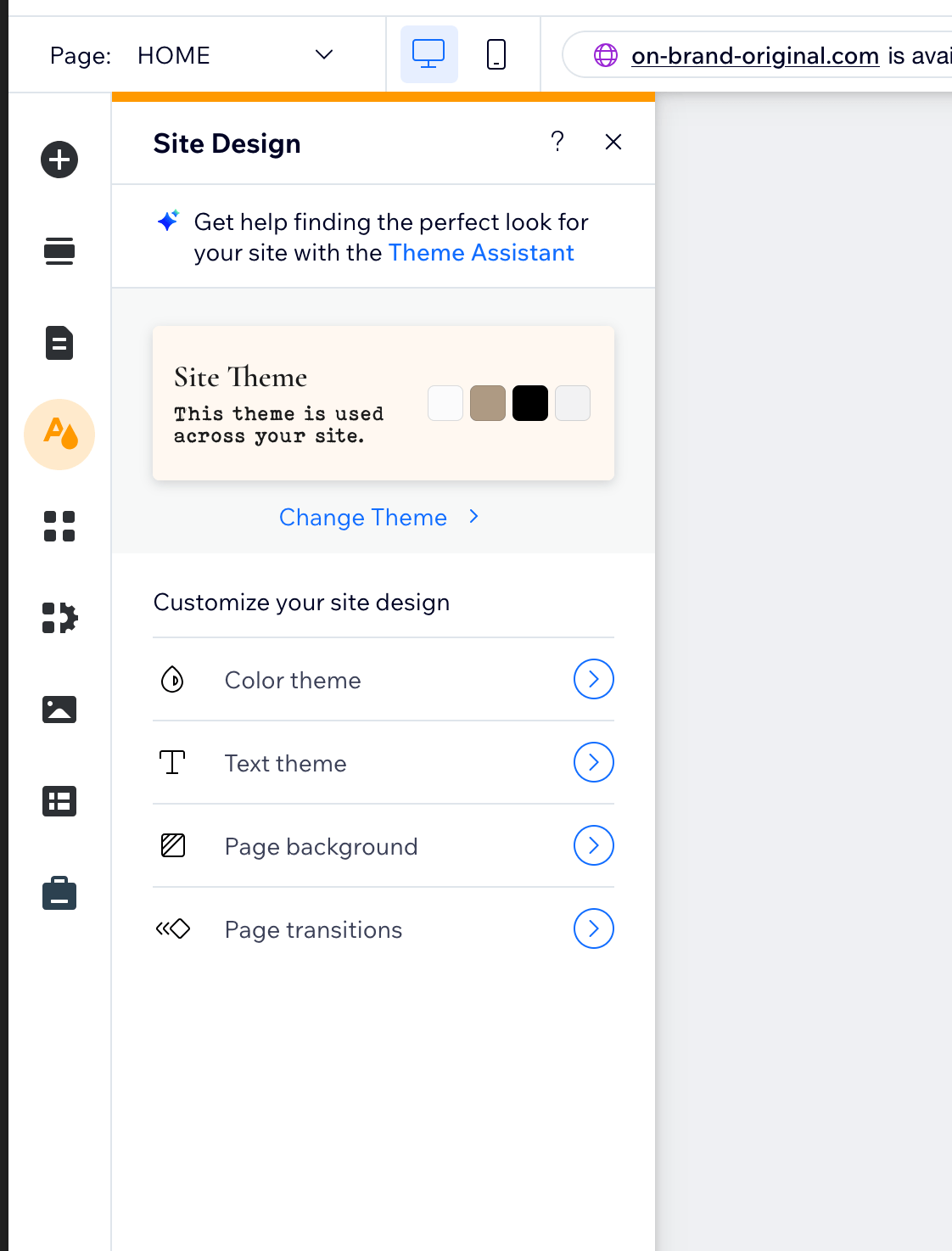
CHANGE THE WHOLE PALETTE.
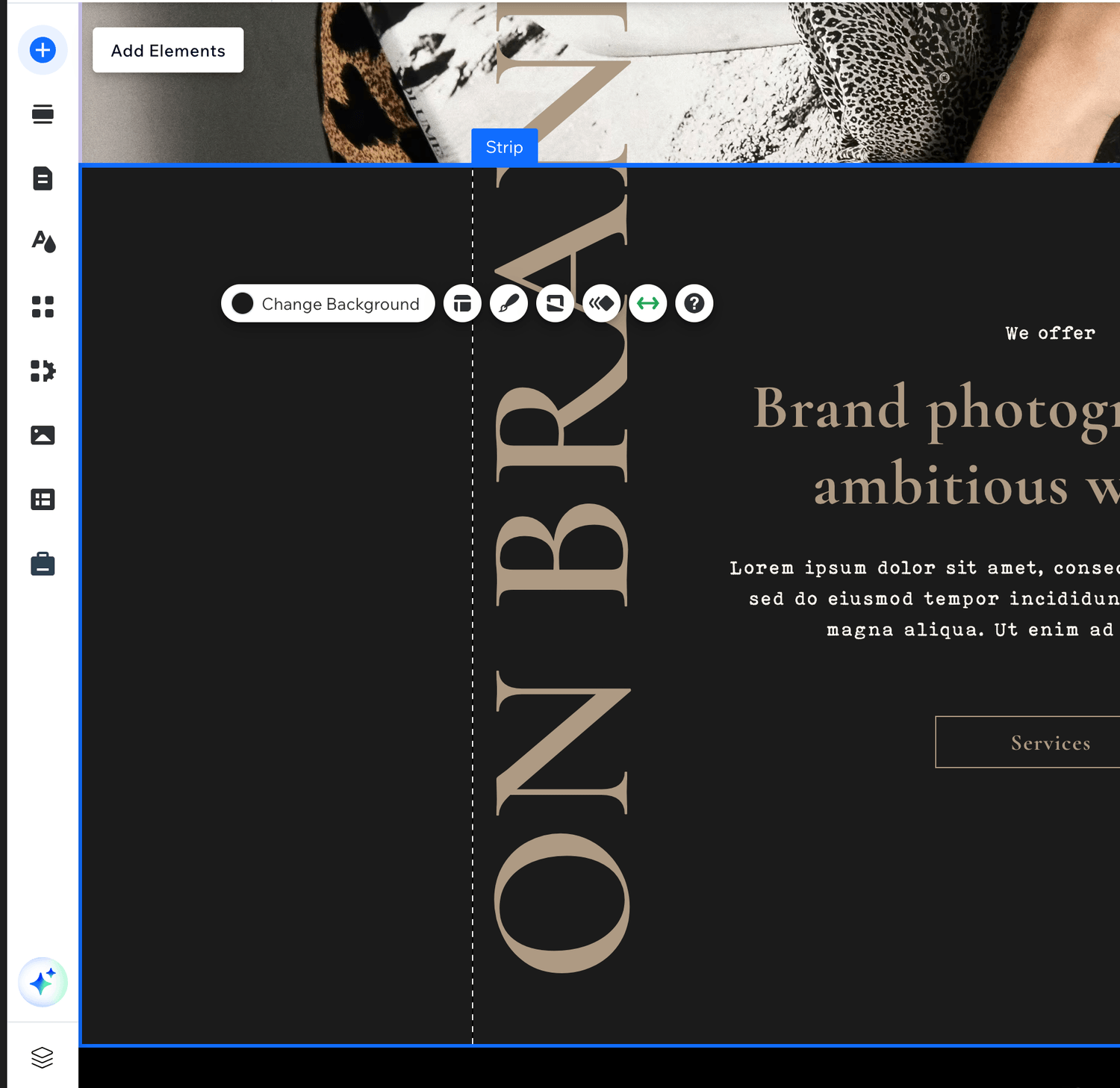
OR JUST THIS ONE.
CHANGE THE FONTS.
Your template already comes with its typography designed.
You are absolutely allowed to change it.
I’m trusting you.
Just like the colours, you can either change the fonts across the website or change one individual piece of text without affecting anything else.
OPTION 1 / CHANGE YOUR SITE FONTS.
Use this if you want to change the overall typography of the template to match your own brand.
On the left-hand side of the Wix Editor, click Site Design and open the site's text/theme settings.
Here you'll see the text styles used throughout the website, including headings and paragraphs.
1. Click Site Design.
2. Open the site's text/theme settings.
3. Choose the text style you want to change.
4. Select your new font.
5. Repeat for any other text styles you want to change.
Changing a font here can affect every piece of text using that particular text style throughout the website.
So if you change the font assigned to a heading style, all headings using that style can change with it.
Very useful when you're giving the whole website a new wardrobe.
OPTION 2 / CHANGE ONE PIECE OF TEXT ONLY.
If you only want to change the font of one particular heading, paragraph or piece of text, you don't need to change the site's overall typography.
Instead, change that text element individually.
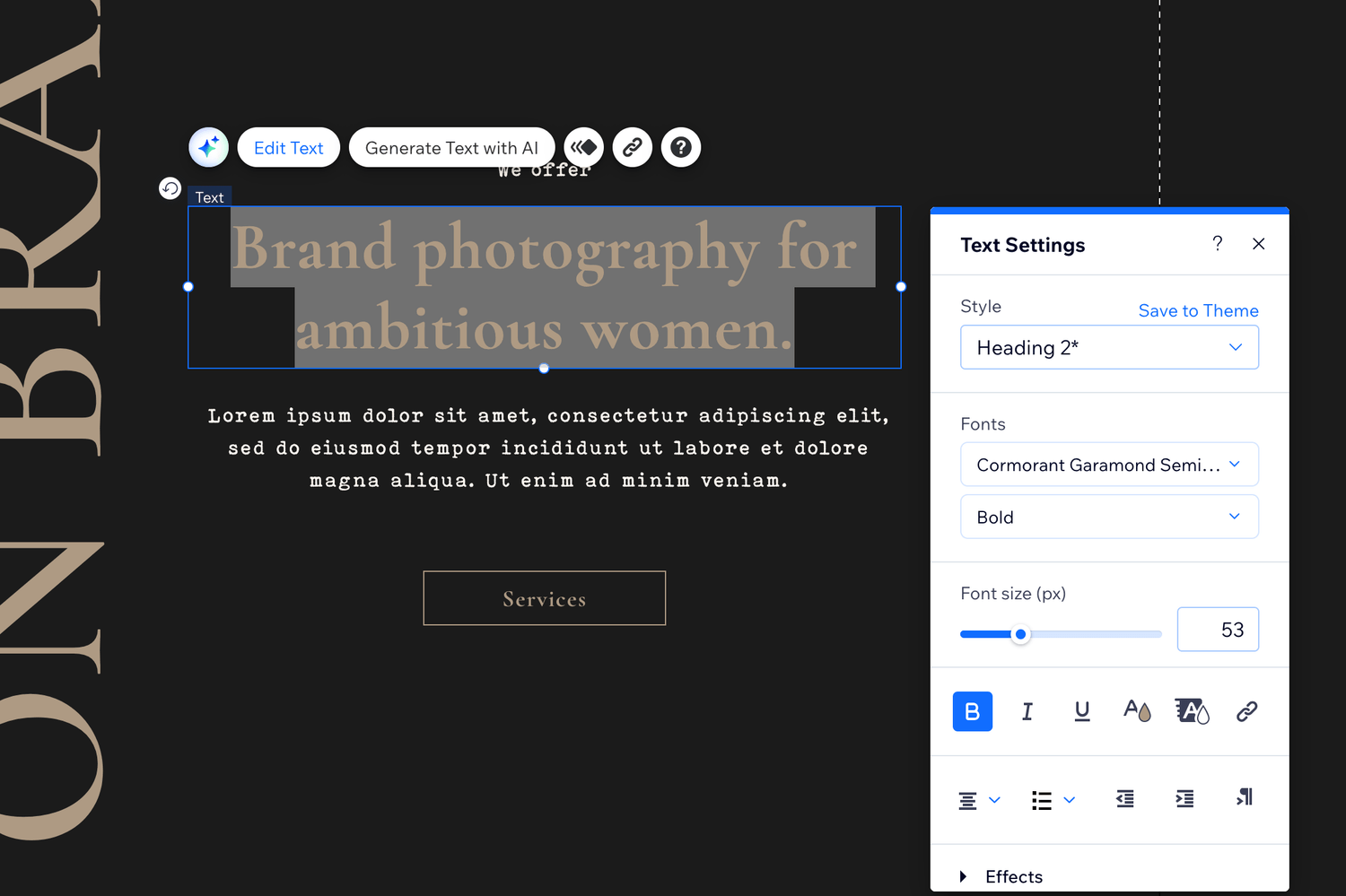
1. Click directly on the text you want to change.
2. Click Edit Text.
3. Highlight the text you want to change.
4. Open the font menu in the text settings.
5. Choose your new font.
You can also change the size, weight, alignment, spacing and other text settings here.
This will let you style that particular text element without changing all the other headings or paragraphs using the site's theme styles.
So:
Want to replace the template's fonts throughout the website?
Change the SITE TEXT THEME.
Want this one heading to be different?
Change the INDIVIDUAL TEXT.
ONE SMALL WARNING.
Different fonts take up different amounts of space.
A heading that sits beautifully on one line in the original font may suddenly become two or three lines in another.
So whenever you change a font, check the text itself, the spacing around it and how it looks on both desktop and mobile.
A gorgeous font that has pushed half your headline into the next postcode is no longer a gorgeous font.
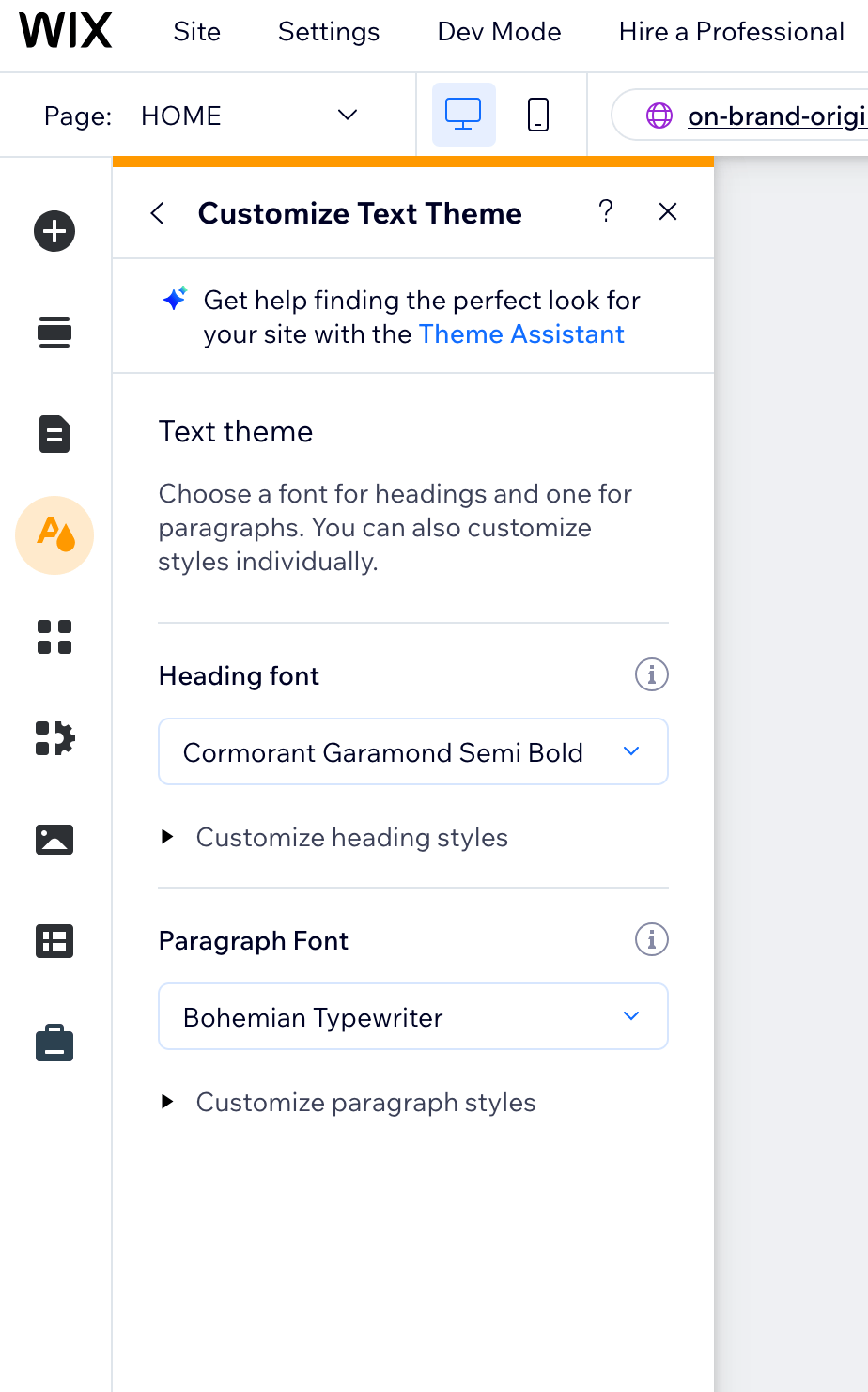
CHANGE THE SITE FONTS
OR JUST THIS ONE.
CHECK YOUR BUTTONS + LINKS.
This is something your old guide doesn't include, and it absolutely should.
The template contains demo buttons and links. You need to make sure they lead to your pages, sections, social accounts, email address, downloads and external websites.
To change a button link:
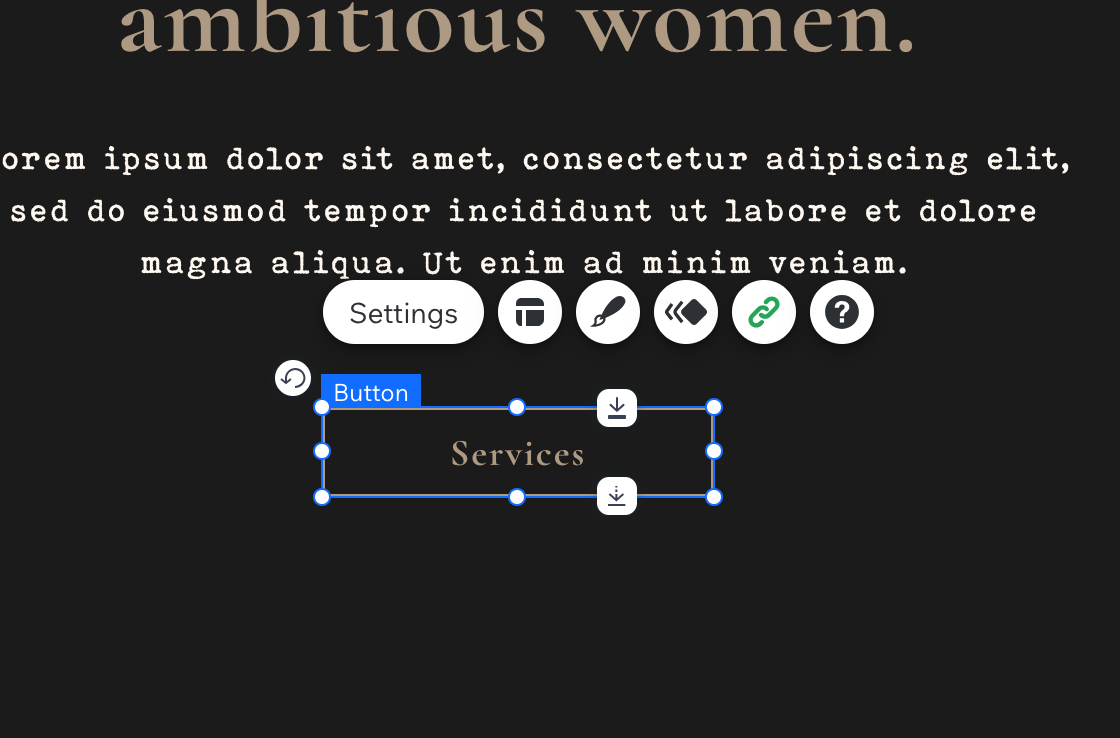
1. Click the button.
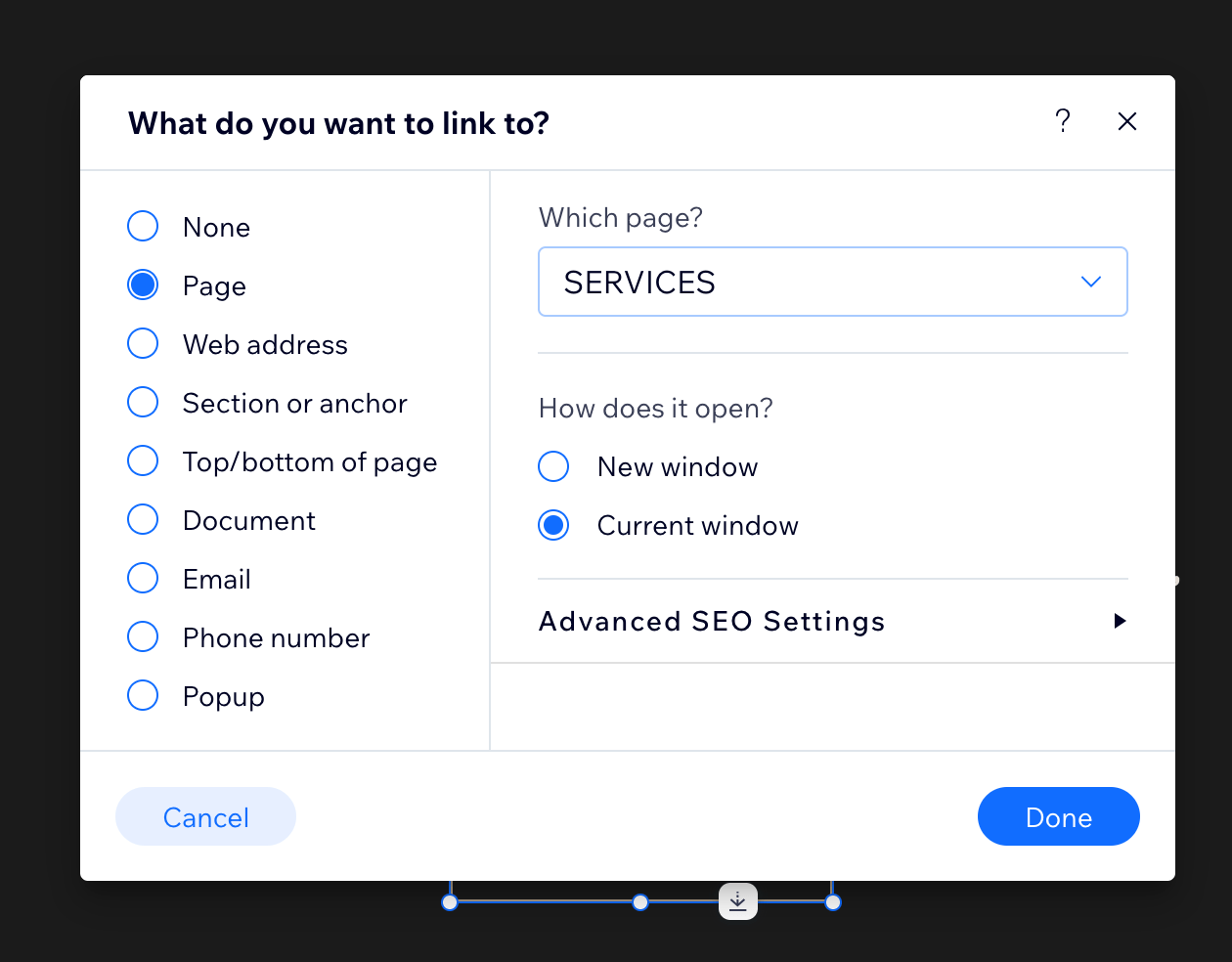
2. Choose the Link option.
3. Choose where the button should lead.
Depending on what the button is for, you can link it to another page, a section of a page, an external website, an email address, a document or another available destination.
4. Save/apply the new link.
Do this for every clickable element on the website.
That includes your menu, buttons, logo, social icons, email links and any resource/freebie buttons included in the template.
If your template has a button that jumps to a section on another page, be careful before deleting or renaming that section. You'll need to update any buttons linked to it as well.
Do not assume a demo button already knows where your business lives.
It does not.
SORT OUT YOUR FORMS.
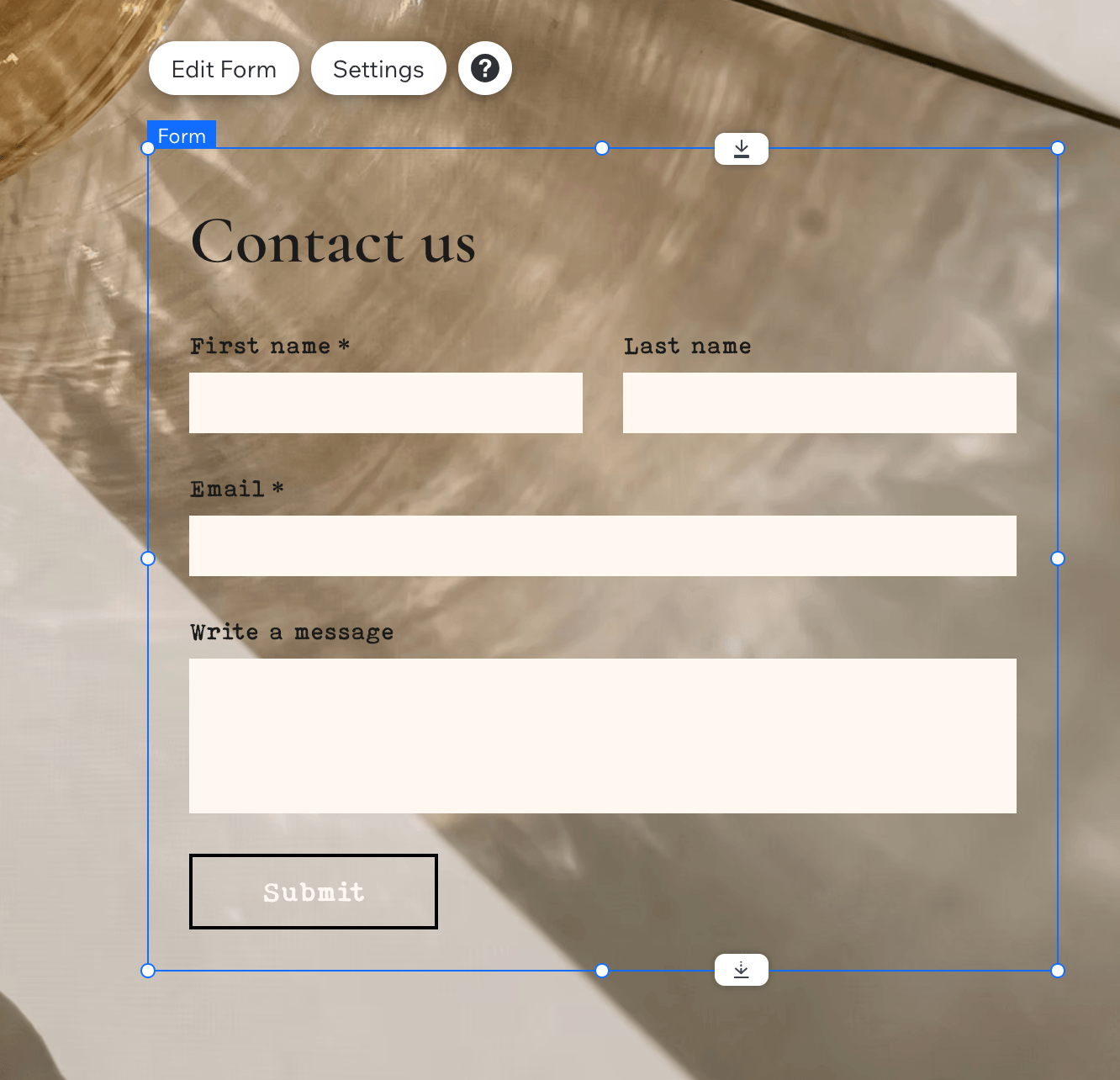
If your template contains a contact or enquiry form, customise that too.
Click the form and open its settings.
Go through the fields and make sure you're asking for the information you need from a potential client.
Then check the form's submission/notification settings so enquiries are connected to your business, not the demo setup.
When you're finished, submit the form yourself.
Actually send an enquiry.
Then check that it arrived.
If your template includes a mailing-list signup, freebie, resource or download section, you'll also need to connect that to your own email setup, file or destination.
Those are placeholders for your business.
DESKTOP + MOBILE.
This part of your old guide needs correcting rather than simply rewriting.
Wix automatically creates a mobile version of your website using the content from the desktop version. You don't have to build the entire mobile website separately.
However, you still need to check it.
When you replace my text with yours, your heading might become longer. Your photograph might have a different crop. A section might need more space.
So while you're editing, work like this:
1. Edit a page on desktop.
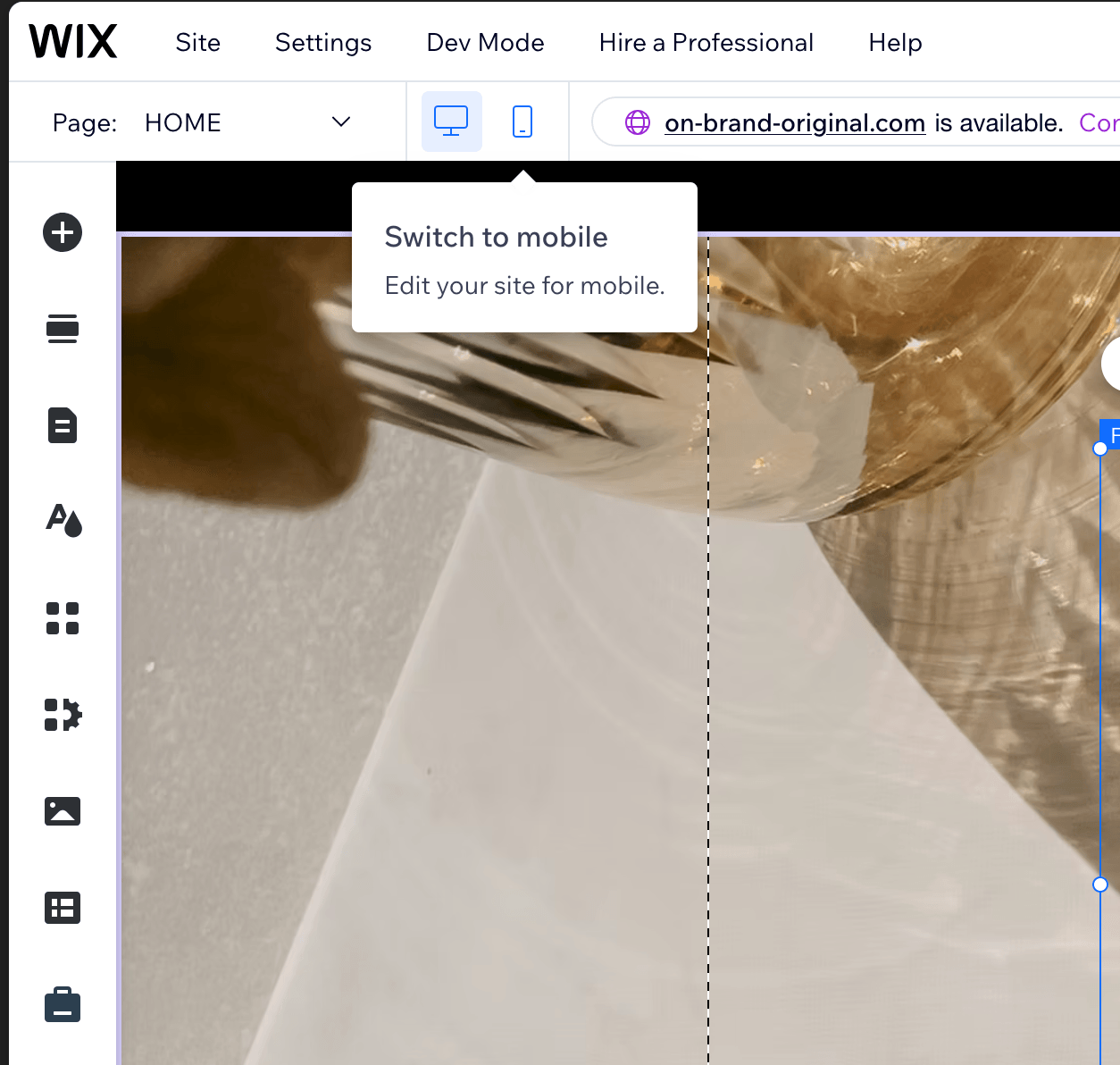
2. Switch to mobile.
3. Check the same page.
4. Fix any spacing, sizing, alignment or image-crop problems.
5. Go back to desktop and move on to the next page.
DESKTOP → MOBILE → NEXT PAGE.
On mobile, pay particular attention to:
headings and line breaks
text size
spacing between sections
image crops
buttons
alignment
anything overlapping
anything that looks suspiciously enormous
anything that has wandered off somewhere it doesn't belong
Changes you make specifically to the mobile layout can be used to optimise how the site looks on smaller screens without having to redesign the desktop version.
Your template already has a mobile design.
You're checking that your new content hasn't upset it.
05 / THE BORING BUT IMPORTANT BITS.
Your website is looking like you.
Lovely.
Before we connect the domain and send her into the world, there are a few less glamorous things to sort out.
This is the bit nobody puts on Pinterest.
YOUR SEO SETTINGS.
Every page on your website has SEO settings that tell search engines what that page is called and what it's about.
You do not need to become an SEO expert.
You do need to replace the demo information with yours.
TO FIND THEM:
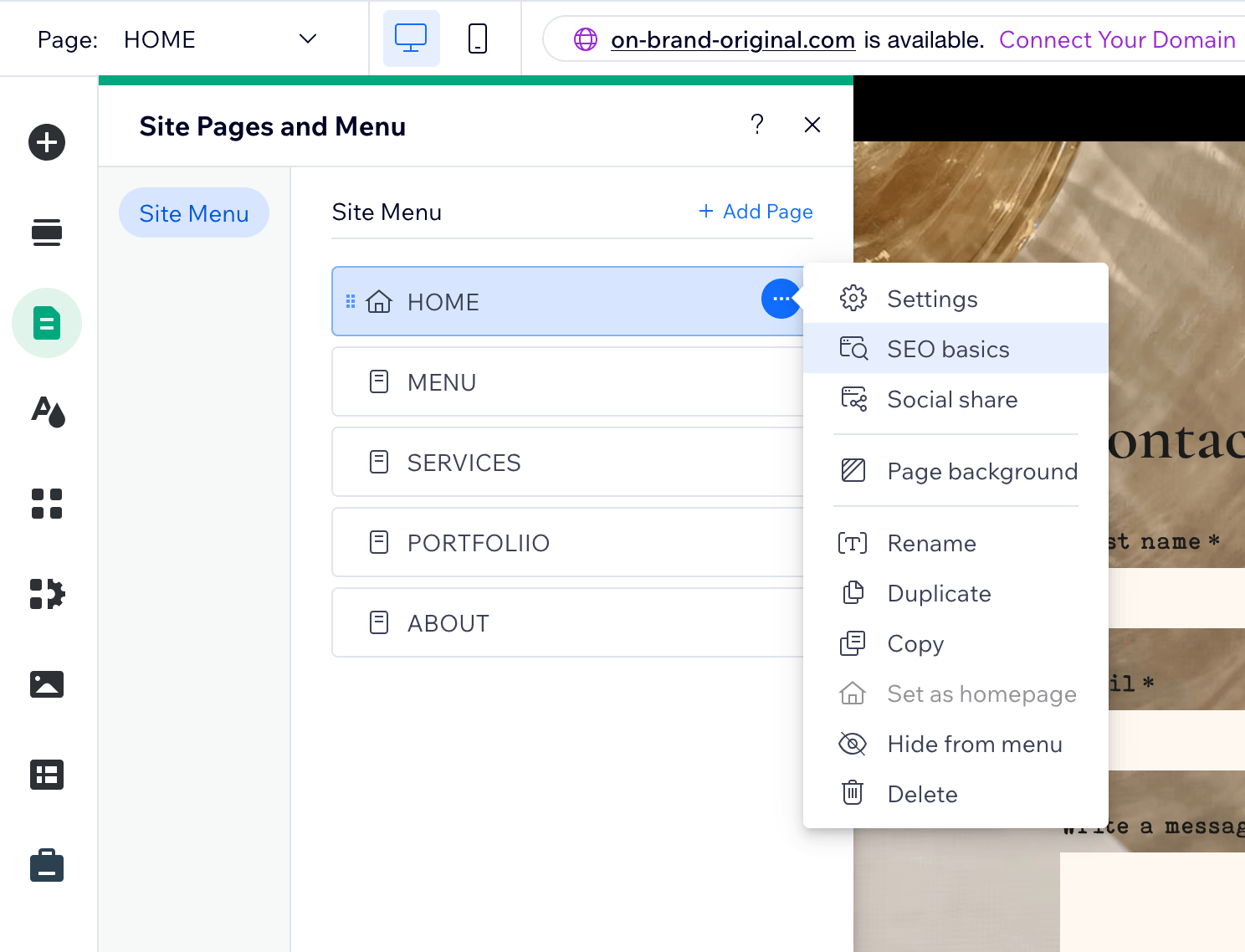
1. Open Pages & Menu on the left-hand side of the Wix Editor.
2. Find the page you want to update.
3. Click the More Actions / three dots beside the page.
4. Open SEO Basics.
You'll find settings for things such as your title tag, meta description and URL slug.
Go through these settings for every page on your website.
TITLE TAG
This is the title search engines can display for your page.
Keep it clear and relevant.
For example:
HOME
[Business Name] | [What You Do]
ABOUT
About | [Business Name]
SERVICES
Services | [Business Name]
PORTFOLIO
Portfolio | [Business Name]
Replace the brackets with your actual information.
So if you're a photographer called Studio Darling:
Studio Darling | Brand Photographer
Not:
[Business Name] | [What You Do]
You'd be surprised.
META DESCRIPTION
This is the short description that can appear underneath your page title in search results.
Tell people what the page is actually about.
For example:
HOME
[Business Name] is a [type of business] specialising in [services] for [ideal client]. Discover our work, services and approach.
ABOUT
Meet [Name], the [designer / photographer / creative / founder] behind [Business Name], and discover the story and approach behind the work.
SERVICES
Explore [Business Name] services, including [service], [service] and [service], created for [ideal client].
PORTFOLIO
Explore selected work from [Business Name], including [type of projects / work / services].
These are starting points.
Please replace the brackets.
Again, I feel this needs saying. ;)
CHECK YOUR PAGE URLS.
Each page also has its own URL.
Keep these simple.
For example:
/about
/services
/portfolio
Rather than something left over from the demo, or a seventeen-word description of your spiritual relationship with branding.
If you rename a page, check its URL too.
CHECK YOUR HEADINGS.
Every page should have one clear main heading, usually your H1.
The rest of the page can use the appropriate heading and paragraph styles underneath it.
You don't need to become technically obsessed with this.
Just don't make every piece of large text an H1 because you liked the size of it.
ADD ALT TEXT TO YOUR IMAGES.
Alt text is a short description of what an image contains. It helps search engines understand your images and is also important for visitors using screen readers.
To add or change it:
1. Click the image.
2. Open the image settings.
3. Find the alt text field.
4. Describe the image clearly and naturally.
For example:
Brand photographer working with client in Marbella studio
is useful.
image123finalFINAL.jpg
less so.
CHANGE YOUR FAVICON + SITE IDENTITY.
Your favicon is the tiny icon that appears in the browser tab beside your website name.
Change it to your own logo, mark or brand icon rather than leaving the demo/Wix identity there.
Also check your site's business/site information and replace anything belonging to the demo with your own.
That includes your:
business/site name
logo
favicon
social sharing information
social sharing image
business details
Basically, by the time we're finished, there should be no evidence of me remaining on the premises.
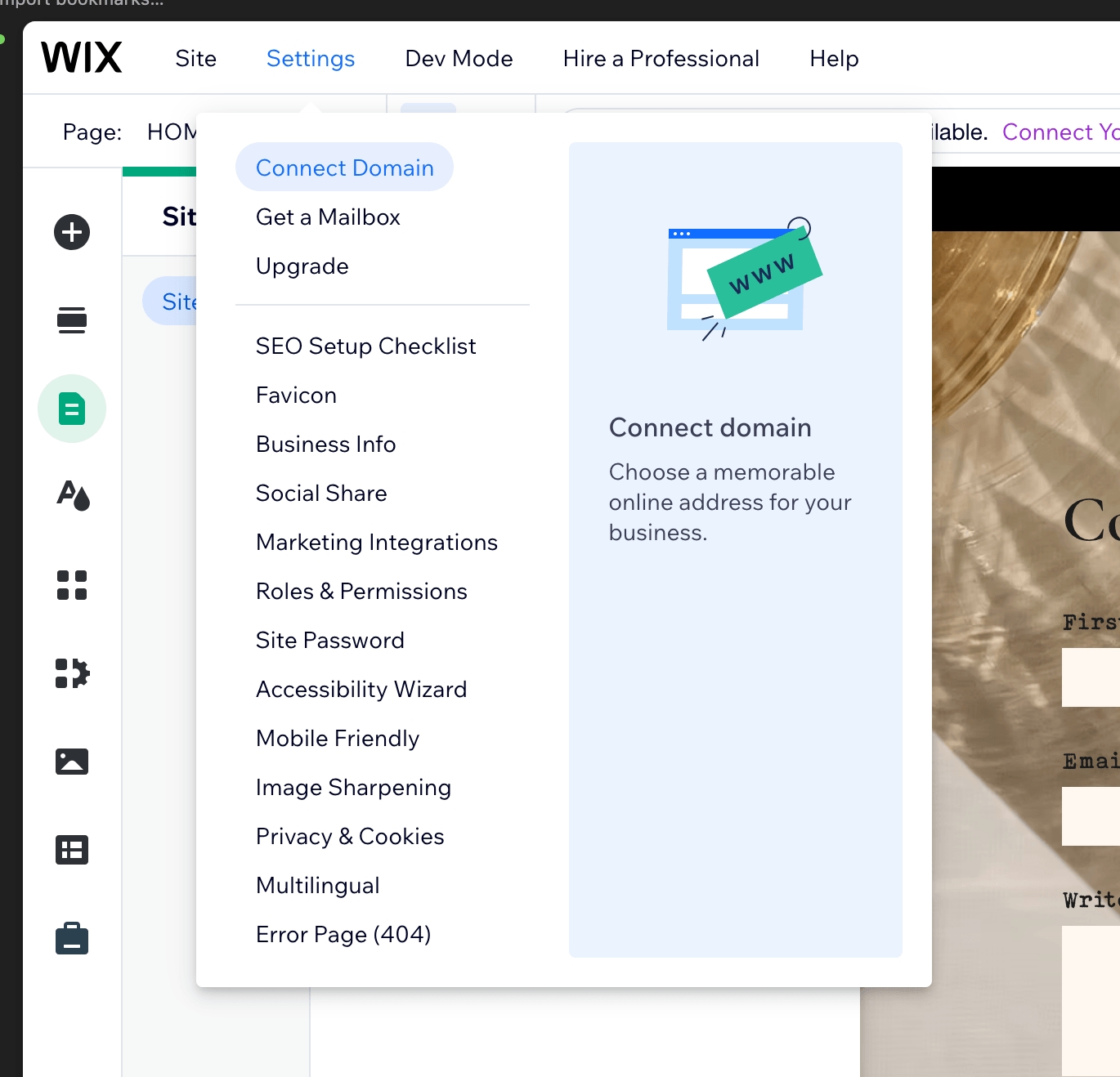
Here you´ll find the favicon /site identity edit option.
06 / CONNECT YOUR DOMAIN.
At the moment, you can build and edit your website inside Wix without connecting your own domain.
When you're ready to use an address such as:
rather than a free Wix URL, you'll need to connect your domain and use an appropriate Wix paid plan.
Your Wix subscription and domain are not included with your template purchase.
You have two options:
OPTION 1 / BUY A NEW DOMAIN THROUGH WIX.
If you don't already own your business domain, you can search for and purchase one through Wix.
Wix will guide you through connecting it to your website.
OPTION 2 / CONNECT A DOMAIN YOU ALREADY OWN.
If you've already bought your domain somewhere else, you don't need to buy another one.
You can connect your existing domain to your Wix website.
Exactly how this works depends on where you bought the domain and how your DNS is currently set up.
And this is where I lovingly hand you over to Wix.
Follow Wix's current instructions for your particular domain setup.
They built that bit.
I'm not going to compete with their technical documentation for sport.
IMPORTANT
Don't cancel anything with your existing domain provider just because you're building your website on Wix.
Your domain, website, and business email can be separate services.
If you already use an email address such as hello@yourbusiness.com, make sure you understand how changing your domain settings could affect it before changing DNS records.
If in doubt, use Wix's instructions or contact Wix/the company currently managing your domain.
This is precisely the kind of thing technical support departments were invented for.
07 / PUBLISH IT.
We're here.
In the top-right corner of the Wix Editor you'll find Publish.
Before you click it, you can use Preview one final time to see the website without all the Wix editing controls around it.
Happy?
Good.
1. Click Publish.
2. Wait for Wix to confirm that your website has been published.
3. Open the actual live website.
Don't stop at the Wix Editor.
4. Open the live website on your computer and check it.
5. Open it on your phone and check it again.
6. Click your most important buttons and links one final time.
7. Send yourself another test enquiry through the live contact form.
Everything works?
Excellent.
SHE'S LIVE.
ONE SMALL ADMINISTRATIVE DETAIL.
Buying one of my templates gives you the website, the design and this guide.
It does not include me becoming your personal Wix technical assistant.
I have grown.
I have boundaries now.
For questions about how Wix itself works, account settings, billing, subscriptions, domains, DNS, email connections, apps, technical errors and whatever button Wix has decided to move since Tuesday, your first stop is:
Wix has an enormous library of step-by-step guides for exactly this reason.
So when you hit something unfamiliar:
Open the guide.
Make a coffee.
Sip the coffee.
Apply a small amount of brain power.
You can do this.
And if, somewhere around your third browser tab, you realise that being a web developer is considerably less fun than you had imagined...
There is another option...
OR DON'T DO ANY OF THIS.
If you've bought one of my Wix templates and decide you'd rather hand the whole thing back to me, you can upgrade to THE 48 HOUR EDIT within 7 days of your template purchase.
Your €299 template purchase is credited towards the service, so you pay the remaining €1,191.
You send me your business, copy, images and brand details.
I take the template and make it yours.
The pages.
The words.
The photographs.
The colours.
The details.
The mobile version.
The whole bloody thing.
You get to go and do whatever it was you were doing before you briefly decided to become a web designer.
EXPLORE THE 48 HOUR EDIT →
Very little character building required.